How to Type Accents in Google Docs: Search, Code Point or Draw
To type accents in Google Docs, click Insert, then Symbols, then Special characters, and type the letter's name into the search box: e with acute finds é. Click the letter to insert it at the cursor. A code point works as well: U+00F1 finds ñ. For letters you type every day, use your computer's own accent keys instead.
What does typing an accent look like in Google Docs?
6 screenshots below were taken for AccentPad in Google Docs in Chrome on macOS 26.6.2, with the English interface, on 2026-10-17, cropped to the menu or the dialog. They show Google Docs as it was that day: a web app can move a menu item between two visits, so look for the names in the screenshots rather than their places.
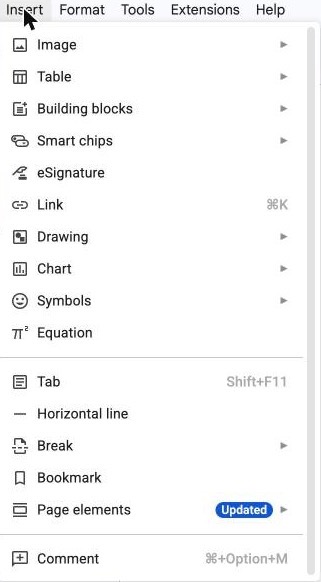
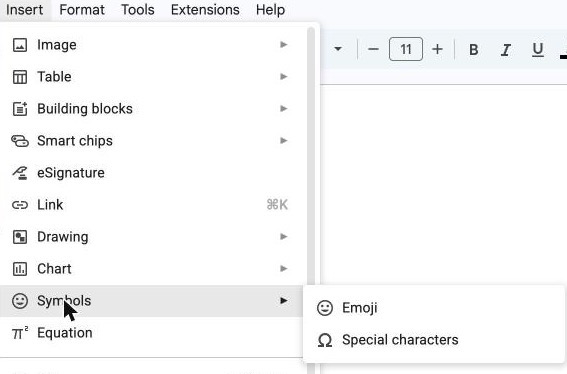
Insert, then Symbols: where Special characters sits
Search by name, check the tile, click

Search by code point
How to type accents in Google Docs, step by step
Step 1: Open Special characters
Put the cursor where the letter belongs. Click Insert, then Symbols, then Special characters.
Step 2: Search for the letter by name
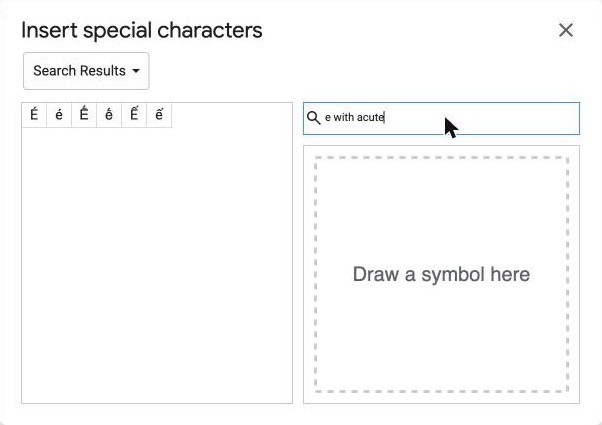
Type the letter and its mark into the search box on the right, such as e with acute. The matching letters fill the grid on the left.
Step 3: Hover to check the letter
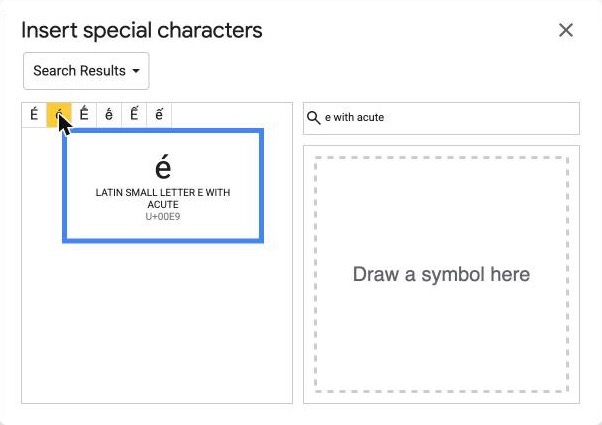
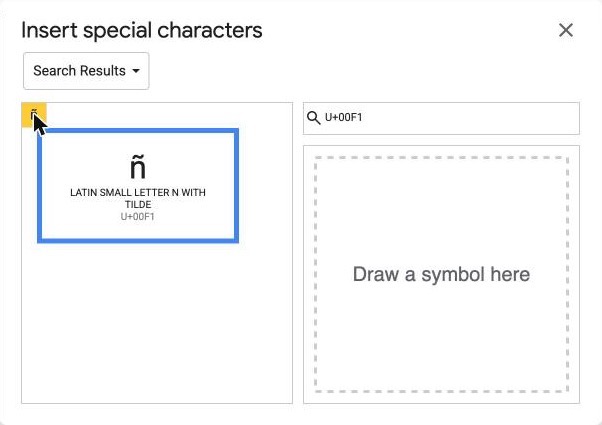
Point at a tile: Docs shows the letter large with its Unicode name and its code point, such as LATIN SMALL LETTER E WITH ACUTE and U+00E9.
Step 4: Click the letter
Click the tile and the letter goes into the document at the cursor.
Step 5: Search a code point instead
Type U+ and the code into the same box, such as U+00F1 for ñ, when you know the code but not the name.
What can you type into the Special characters search box?
The search box takes a letter's name, and the name it understands is the letter's Unicode name. Knowing how to type accents in Google Docs mostly means knowing that name: é is latin small letter e with acute, ñ is latin small letter n with tilde. The table further down gives the word each mark carries in those names, mark by mark.
You rarely need the whole name. In our screenshots, e with acute was enough, and the grid on the left filled with six tiles. Short searches are quick to type but loose: e letters that carry a second mark as well came back too.
So hover before you click. The preview box shows the full name and the code point, and at the size of the grid that is the surest way to tell two similar tiles apart.
The words are English and technical. Accent marks in Google Docs searches go by their Unicode names, not by what a Spanish or German writer calls them, so use the word in the table below. The capitals have names of their own, with capital in place of small: for Ñ, search latin capital letter n with tilde.
When is a code point faster than a name?
A code point is faster when the name is long or you are not sure of it. Google's help page for special characters (opens in a new tab) lists entering the character's Unicode value as one way to find it. Our capture used the U+ form: U+00F1 brought back one tile, ñ, and nothing else.
A code point is precise where a name is loose. A short name search returns the small letter and its capital side by side, and often more, while a code point names exactly one character. The capital has a code point of its own, U+00D1 for Ñ. Every AccentPad letter page prints the code point next to the letter, so look it up there and type it into the box.
What does the draw box in Special characters do?
The large box under the search field, marked Draw a symbol here, is the least known way into special characters in Google Docs: it is for handwriting. Google's help page lists writing the character in the box on the right as one way to find it, next to the Unicode value and the categories. Draw the letter with its mark, using the mouse or a trackpad.
Drawing suits a letter you can see but cannot name, such as one on a photo of a street sign or in an old document. AccentPad's screenshots show the empty box only, not a drawing, so this page gives no example of what it returns. Whatever it offers, hover over a tile to read its name before you click.
Picking from categories is the fourth way in. After our searches, the dropdown at the top left of the dialog read Search Results; Google's help names the categories as an option but does not list them.
Do your computer's accent keys work in Google Docs?
Yes, and for letters you write every day they beat the dialog. They belong to your computer, not to Docs, so AccentPad keeps them on its device guides:
- On a Mac, Option+E, then E types é. The Mac guide has every Option key and the press-and-hold menu.
- On Windows, hold Alt and type 0233 on the number pad for é. The Windows guide lists the Alt codes mark by mark.
- On a Chromebook, switch to the US International keyboard first. The Chromebook guide walks through the setup.
Use the dialog for the rest: the rare letter, the stacked marks of Vietnamese, or a one-off name. It is part of Docs, not of the keyboard, so its steps are the same on any computer.
How do you fix accents in Google Docs after typing?
Fix accents in Google Docs after typing with Find and replace, under Edit. Google's find and replace help (opens in a new tab) describes it: type the plain spelling next to Find, the accented one next to Replace with, then select Replace all. Type naive while you write, then turn every one into naïve in one pass. Tick Match case to handle Naive at the start of a sentence separately.
Autocorrect can save the second pass for words Docs flags. Google's Autocorrect help (opens in a new tab) says to right-click the word and select Always correct to with the spelling you want.
The same page shows where to undo that. Under Tools, then Preferences, then Substitutions, uncheck or remove an automatic substitution that changes a word you meant to leave plain. Google lists Autocorrect for English, French, German, Portuguese and Spanish, and says it can be managed only on a computer.
Which word finds each accent in Google Docs?
Every one of the 261 letters in AccentPad's catalogue, counted once for both cases, is found the same way in Google Docs: Insert, then Symbols, then Special characters, then a search for the letter's Unicode name. Each row is one mark, the word the names of its letters use for it, and the search for one letter that carries that mark alone. A letter with two marks, such as ǖ, carries both words in its name (diaeresis and macron) and is listed under both. The word is diaeresis, not umlaut: that is what Unicode calls the mark in the names of ä, ë and ḧ.
| Mark | Letters | Word in the name | Search in Google Docs |
|---|---|---|---|
| Acute accent | á ǻ ấ ắ ć ḉ é ḗ ế ǵ í ḯ ḱ ĺ ḿ ń ó ṍ ṓ ố ớ ṕ ŕ ś ṥ ú ǘ ṹ ứ ẃ ý ź | Word in the name: acute | For á: Search "latin small letter a with acute". |
| Diaeresis (umlaut) | ä ǟ ë ḧ ï ḯ ö ȫ ṏ ẗ ü ǖ ǘ ǚ ǜ ṻ ẅ ẍ ÿ | Word in the name: diaeresis | For ä: Search "latin small letter a with diaeresis". |
| Grave accent | à ầ ằ è ḕ ề ì ǹ ò ṑ ồ ờ ù ǜ ừ ẁ ỳ | Word in the name: grave | For à: Search "latin small letter a with grave". |
| Circumflex | â ấ ầ ẩ ẫ ậ ĉ ê ế ề ể ễ ệ ĝ ĥ î ĵ ô ố ồ ổ ỗ ộ ŝ û ŵ ŷ ẑ | Word in the name: circumflex | For â: Search "latin small letter a with circumflex". |
| Tilde | ã ẫ ẵ ẽ ễ ĩ ñ õ ȭ ṍ ṏ ỗ ỡ ũ ṹ ữ ṽ ỹ | Word in the name: tilde | For ã: Search "latin small letter a with tilde". |
| Caron | ǎ č ď ě ǧ ȟ ǐ ǰ ǩ ľ ň ǒ ř š ṧ ť ǔ ǚ ž | Word in the name: caron | For ǎ: Search "latin small letter a with caron". |
| Cedilla | ç ḉ ḑ ȩ ḝ ģ ḩ ķ ļ ņ ŗ ş ţ | Word in the name: cedilla | For ç: Search "latin small letter c with cedilla". |
| Stroke | đ ħ ł ø ŧ | Word in the name: stroke | For đ: Search "latin small letter d with stroke". |
| Dot above | ǡ ȧ ḃ ċ ḋ ė ḟ ġ ḣ İ ṁ ṅ ȯ ȱ ṗ ṙ ṡ ṥ ṧ ṩ ṫ ẇ ẋ ẏ ż | Word in the name: dot above | For ȧ: Search "latin small letter a with dot above". |
| Dot below | ạ ậ ặ ḅ ḍ ẹ ệ ḥ ị ḳ ḷ ḹ ṃ ṇ ọ ộ ợ ṛ ṝ ṣ ṩ ṭ ụ ự ṿ ẉ ỵ ẓ | Word in the name: dot below | For ạ: Search "latin small letter a with dot below". |
| Ring | å ǻ ů ẘ ẙ | Word in the name: ring above | For å: Search "latin small letter a with ring above". |
| Macron | ā ǟ ǡ ē ḕ ḗ ḡ ī ḹ ō ǭ ȫ ȭ ȱ ṑ ṓ ṝ ū ǖ ṻ ȳ | Word in the name: macron | For ā: Search "latin small letter a with macron". |
| Breve | ă ắ ằ ẳ ẵ ặ ĕ ḝ ğ ĭ ŏ ŭ | Word in the name: breve | For ă: Search "latin small letter a with breve". |
| Ogonek | ą ę į ǫ ǭ ų | Word in the name: ogonek | For ą: Search "latin small letter a with ogonek". |
| Hook above | ả ẩ ẳ ẻ ể ỉ ỏ ổ ở ủ ử ỷ | Word in the name: hook above | For ả: Search "latin small letter a with hook above". |
| Horn | ơ ớ ờ ở ỡ ợ ư ứ ừ ử ữ ự | Word in the name: horn | For ơ: Search "latin small letter o with horn". |
| Double acute | ő ű | Word in the name: double acute | For ő: Search "latin small letter o with double acute". |
| Comma below | ș ț | Word in the name: comma below | For ș: Search "latin small letter s with comma below". |
| Line below | ḇ ḏ ẖ ḵ ḻ ṉ ṟ ṯ ẕ | Word in the name: line below | For ḇ: Search "latin small letter b with line below". |
| Circumflex below | ḓ ḙ ḽ ṋ ṱ ṷ | Word in the name: circumflex below | For ḓ: Search "latin small letter d with circumflex below". |
| Double grave | ȁ ȅ ȉ ȍ ȑ ȕ | Word in the name: double grave | For ȁ: Search "latin small letter a with double grave". |
| Inverted breve | ȃ ȇ ȋ ȏ ȓ ȗ | Word in the name: inverted breve | For ȃ: Search "latin small letter a with inverted breve". |
| Tilde below | ḛ ḭ ṵ | Word in the name: tilde below | For ḛ: Search "latin small letter e with tilde below". |
| Ring below | ḁ | Word in the name: ring below | For ḁ: Search "latin small letter a with ring below". |
| Breve below | ḫ | Word in the name: breve below | For ḫ: Search "latin small letter h with breve below". |
| Diaeresis below | ṳ | Word in the name: diaeresis below | For ṳ: Search "latin small letter u with diaeresis below". |
| No mark: letters of their own | ß æ ð þ ı ŀ ŋ œ ẞ | Their names: ß sharp s, æ ae, ð eth, þ thorn, ı dotless i, ŀ l with middle dot, ŋ eng, œ oe, ẞ capital letter sharp s | For ß: Search "latin small letter sharp s". |
Frequently asked questions about accents in Google Docs
Where did Special characters go in Google Docs?
Special characters sits under Insert, then Symbols, next to Emoji. Google's help page gives that path, and so do AccentPad's screenshots of 2026-10-17. If a guide sends you from Insert straight to Special characters, look one level down, under Symbols.
Can you add accents in the Google Docs app on a phone?
Not with Special characters. Google's help says to open Google Docs on a computer to insert special characters, and its Android and iPhone tabs say the same. In the app, press and hold the letter on the phone's keyboard and slide to the accented form.
How do you type a capital accented letter in Google Docs?
Search for the capital's own name, such as latin capital letter e with acute for É. A short search lists both cases side by side: in our screenshot, e with acute put É first and é second, so you can click the capital there.
Why does the Special characters search show letters I did not ask for?
A short search matches more than one name. On 2026-10-17, e with acute returned six tiles: É and é, then e letters that carry a second mark as well. Hover a tile before you click it: Docs shows its full name and its code point.
Can Google Docs put the accent in for you as you type?
Only through Autocorrect, which Google's help lists for English, French, German, Portuguese and Spanish. When Docs underlines a word and suggests the accented spelling, right-click it and choose Always correct to. Tools, then Preferences, then Substitutions turns automatic substitutions off.